Private Internet Access kill switch
A clear guide to Private Internet Access (PIA) kill switch function, how it works, setup steps, and best practices.
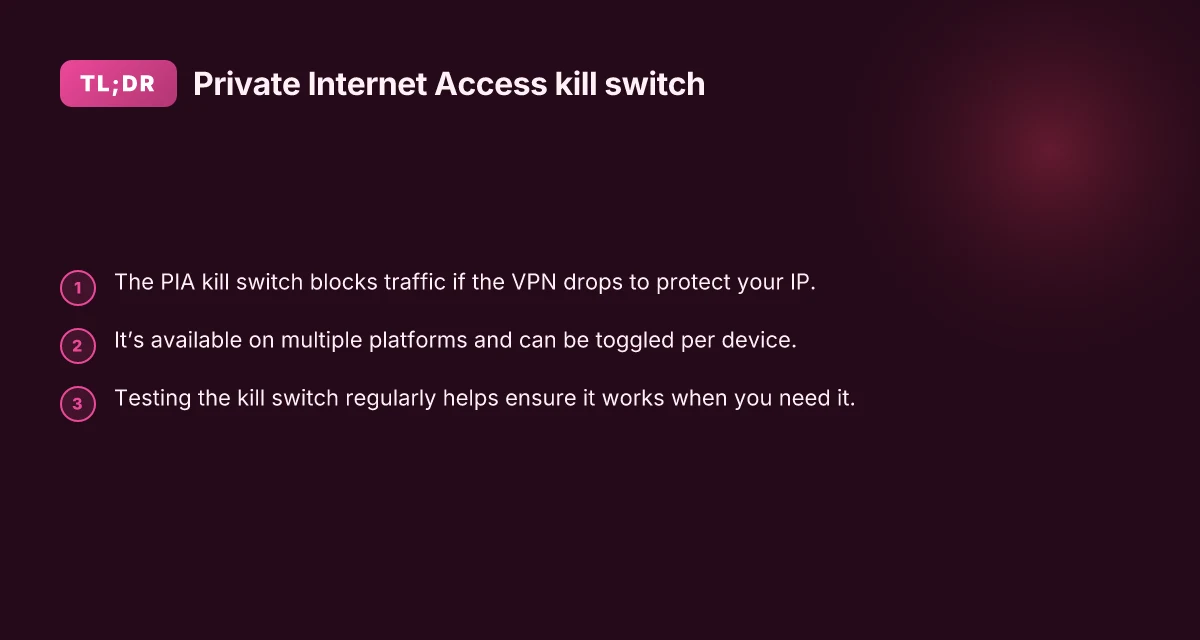
The Private Internet Access (PIA) kill switch is a safety feature designed to protect your online identity. If your VPN connection drops for any reason, the kill switch automatically blocks all internet traffic, preventing your real IP address from leaking. This is especially important for users who want to maintain anonymity, access geo-restricted content securely, or protect sensitive activities on public networks.

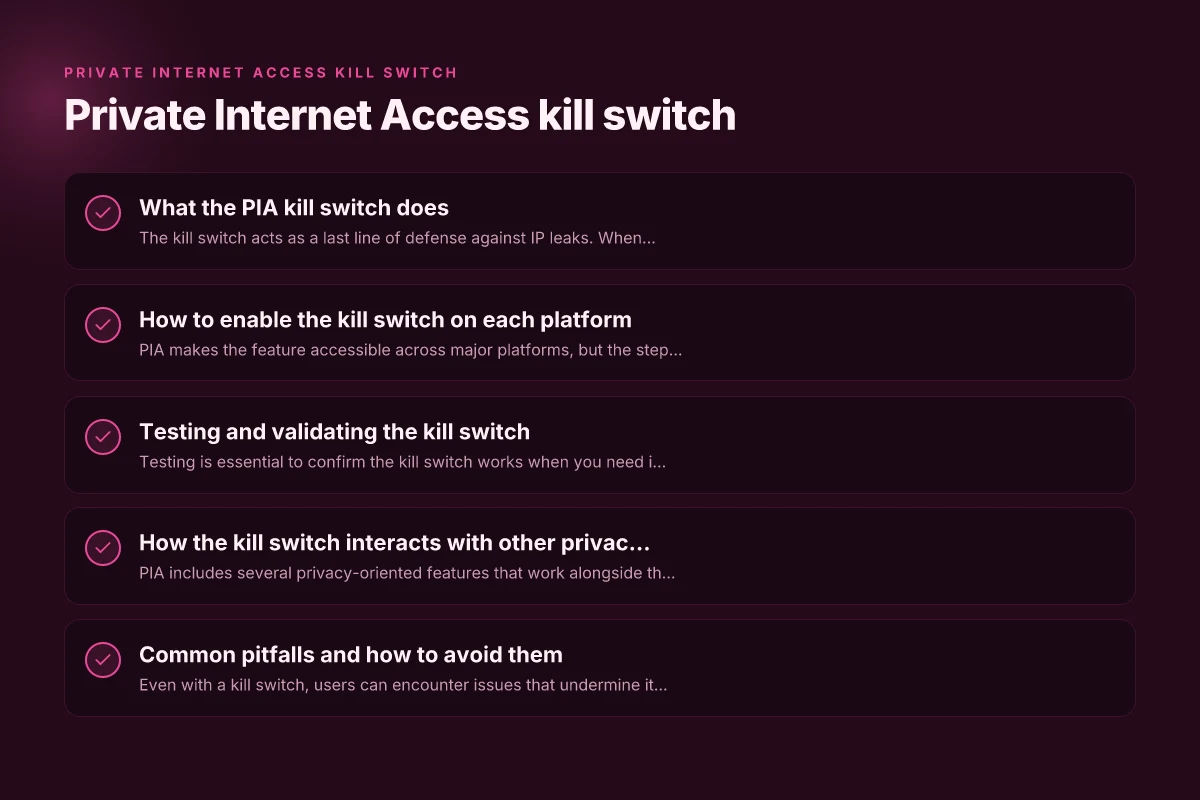
What the PIA kill switch does
The kill switch acts as a last line of defense against IP leaks. When the VPN tunnel is active, your traffic is encrypted and routed through PIA servers. If the tunnel fails, the kill switch cuts off network access, so nothing from your device reaches the internet until the VPN reconnects.
Key behaviors:
- Immediate traffic halt: No data leaks occur if the VPN connection drops.
- Platform-specific implementation: Availability and behavior may vary by operating system.
- Reconnection resume: Once the tunnel is re-established, normal traffic resumes automatically.
How to enable the kill switch on each platform
PIA makes the feature accessible across major platforms, but the steps can differ slightly. Here are the general paths and tips.
Windows
- Open the PIA client.
- Go to Settings or Preferences.
- Locate the Kill Switch option and toggle it on.
- Choose whether to protect all apps or only certain apps (if the option exists in your version).
- It’s a good idea to run a quick connectivity test after enabling.
MacOS
- Launch PIA and open Preferences.
- Find Kill Switch and enable it.
- Some macOS builds label it as App Kill Switch or Network Lock (the exact wording may vary by version).
- Consider enabling also the feature that blocks local network access when disconnected, if available.
Android
- Open the PIA app.
- Access Settings, then Network or Kill Switch.
- Enable the kill switch and test by disconnecting the VPN connection (you’ll want an app-level test, not just a disconnect test).
IOS
- Open PIA on iPhone or iPad.
- Go to Settings within the app.
- Turn on the kill switch (sometimes labeled as Network Lock).
- iOS handles background tasks differently. Ensure you grant necessary permissions so the app can manage network routes.
Desktop browser extensions
If you rely on browser extensions to secure your connection, remember that many browser-based VPN extensions may not protect system-wide traffic the same way as a full desktop app. In such cases, ensure you use the full desktop client with the kill switch enabled, or verify that the extension’s traffic is routed through the VPN.
Testing and validating the kill switch
Testing is essential to confirm the kill switch works when you need it. Here are practical steps. CyberGhost kill switch: what it is, how it works, and why you need it
- Start with a deliberate VPN disconnect: Disconnect the VPN within the app, then try to access a non-HTTPS site or check your IP via a reputable IP checker. If the kill switch is active, you should see that no IP appears and the traffic does not proceed.
- Use a leak test site: Access sites that check for DNS or WebRTC leaks. Remember that DNS leaks and WebRTC leaks are separate issues from the kill switch. The kill switch protects raw traffic, while leaks reveal information in other layers.
- Test on different networks: Try the test on Wi‑Fi and mobile data to ensure the kill switch functions even when your network changes.
- Run automated checks: There are network monitoring tools and scripts that can simulate VPN drops and verify that no traffic leaks occur during the drop.
How the kill switch interacts with other privacy features
PIA includes several privacy-oriented features that work alongside the kill switch. Understanding these interactions helps you maximize protection.
- Split tunneling (where supported): This feature allows some apps to bypass the VPN. If you enable split tunneling, be mindful of which apps are excluded, as they may bypass the kill switch if the VPN drops and the app continues to access the internet directly.
- DNS leak protection: DNS protection prevents your DNS queries from leaking outside the VPN tunnel. The kill switch and DNS protection complement each other, but they address different leak vectors.
- IPv6 handling: Some VPNs route IPv6 differently or disable it entirely to prevent leaks. If your device uses IPv6, ensure it’s configured to avoid leaks in case of VPN drop. The kill switch will still block traffic if the VPN fails.
Table: Quick comparison of VPN leak protections (PIA features vs. standalone protections)
| Feature | What it protects | How it works | When it helps | Notes |
|---|---|---|---|---|
| Kill Switch (PIA) | All internet traffic in case of VPN drop | Stops all traffic until VPN reconnects | Primary defense against IP leaks on drop | Critical for anonymity and sensitive use |
| DNS Leak Protection | DNS queries staying within VPN tunnel | Routes DNS requests through VPN resolver | Prevents DNS-based identity leaks | Works best with full encryption |
| IPv6 Handling | IPv6 traffic leakage | Some VPNs disable IPv6 or route it through VPN | Important for systems using IPv6 | Verify IPv6 is not leaking when VPN drops |
| Split Tunneling | Some apps bypass VPN | Per-application routing rules | Useful for speed or local access, but risky for privacy | Use with caution if privacy is priority |
Common pitfalls and how to avoid them
Even with a kill switch, users can encounter issues that undermine its effectiveness. Here are typical problems and fixes.
- Mistaken assumption that the kill switch is always on: Some versions may have the feature disabled by default. Always verify in Settings after installation or update.
- Inconsistent results across devices: If you use multiple devices, ensure each one has the latest PIA version and its own kill switch enabled.
- Network redesign after OS updates: Major OS updates can reset or modify network settings. Recheck the kill switch after OS updates or PIA updates.
- Background apps bypassing protection: Ensure you’re using the full desktop/mobile app rather than browser extensions for maximum protection.
- Incompatibility with certain security software: Some firewalls or corporate security suites can interfere with VPN routing. Check logs and, if needed, add PIA to allowed apps or modify rules.
Best practices for using the PIA kill switch
- Always test after enabling: A quick test confirms the feature is active and effective on your setup.
- Keep PIA updated: Software updates often include security and stability improvements for the kill switch.
- Use a stable VPN protocol: Some protocols are more robust. Choose a protocol supported by PIA that offers a balance of speed and security for your use case.
- Combine with other protections: DNS protection, IPv6 handling, and, when appropriate, split tunneling should be configured in a privacy-conscious manner.
- Document your security posture: If you rely on the kill switch for professional or sensitive activities, document the configuration and tests for audits or compliance.
Real-world scenarios where the PIA kill switch matters
- Public Wi‑Fi: On open networks, a drop in VPN could expose you to eavesdropping. The kill switch prevents traffic leaks in such environments.
- Geo-restricted content: If the VPN temporarily disconnects, your real location could leak. A kill switch keeps you in a known protected state until you reconnect.
- High-stakes privacy work: Journalists, researchers, or activists often need strong protections. The kill switch is a critical line of defense alongside encryption and privacy hygiene.
Final recommendation
If you value consistent privacy and want a straightforward safety net against IP leaks, enable the PIA kill switch on all devices you routinely use for online activities. Regularly test its function after updates and on different networks, and pair it with DNS protection and careful network settings. No security measure is perfect. The PIA kill switch is a fundamental, proactive protection that can prevent accidental exposure of your real IP when VPN connections falter.